Build the rota
Create shifts and reuse templates around the people and locations you manage. Assignments stay connected to the employee record.

Staff scheduling and rota software
Plan shifts, check availability and cover, review staffing costs and publish rotas with Workmax scheduling software for UK teams.
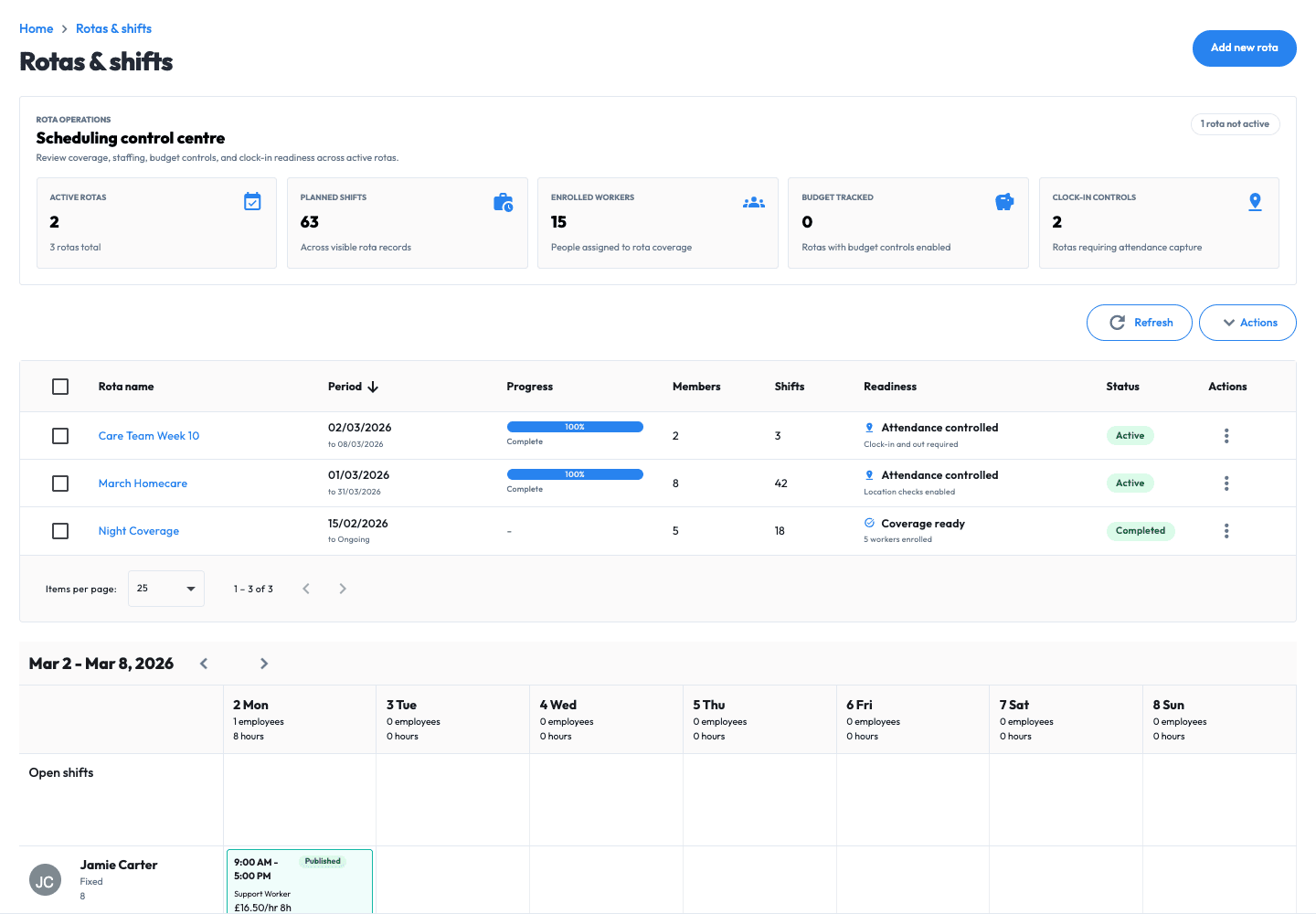
Across the rotas in this example
See who is part of the rota
Times and status in the weekly view
Keep the rota moving
Give managers one place to review coverage and keep employees working from the current rota.

Review availability and leave
Publish the latest shift changes
From demand to published rota
Scheduling plans future work. Time Tracking records what was worked, administers leave and prepares approved hours for payroll.
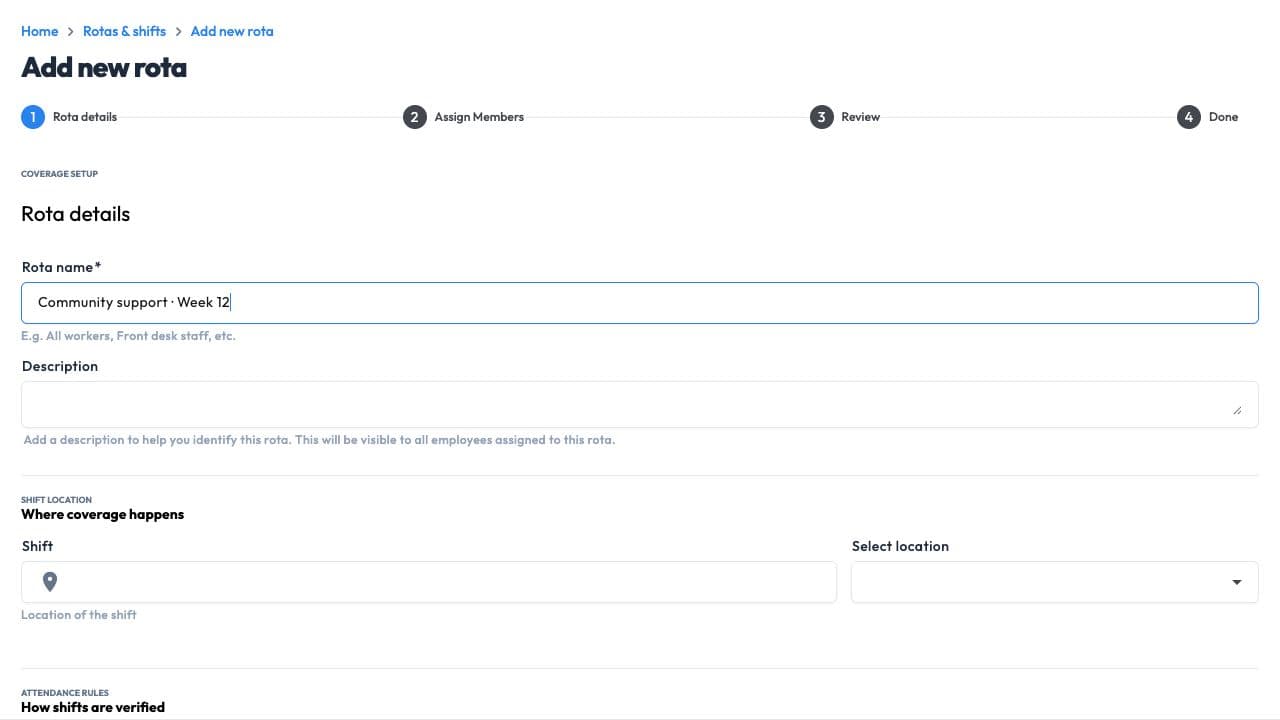
Create the rota, assign its team and client or location context, and configure operating and budget controls.
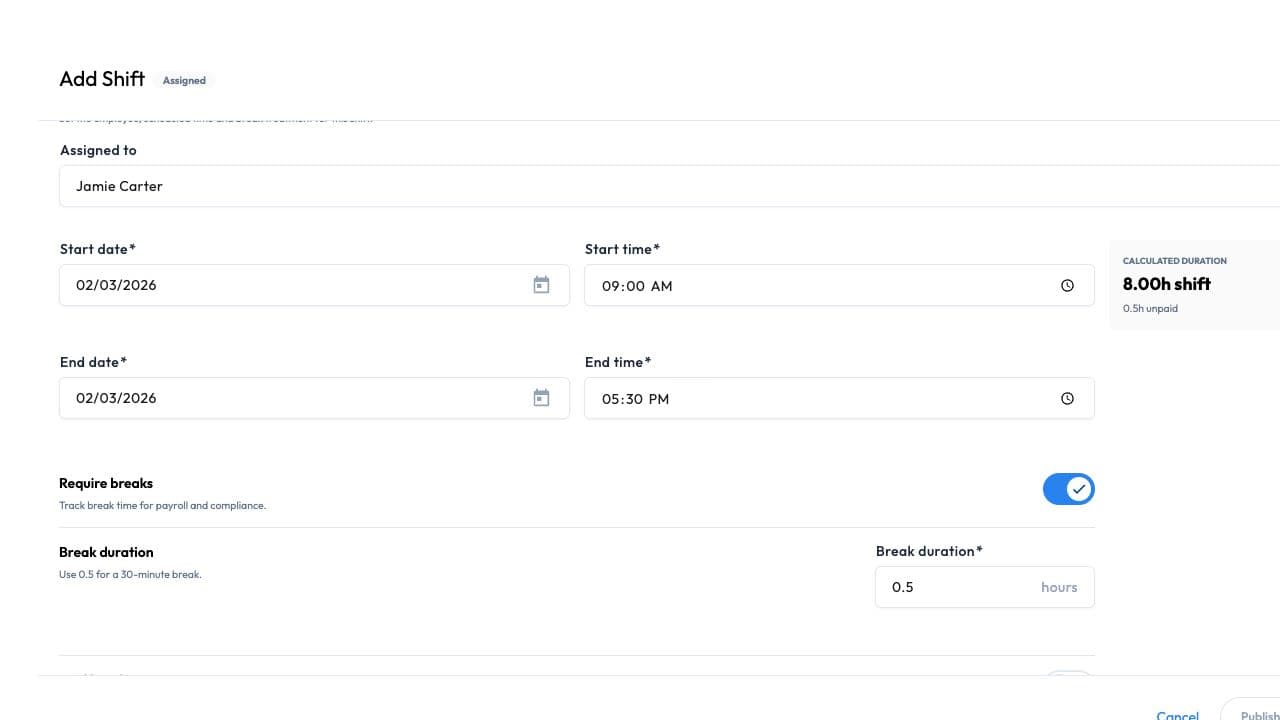
Add shifts manually, duplicate recurring work or load a rota template as the starting point.

Before you publish
Check the gaps. Review the plan.Availability and leave · Overlapping shifts · Budget warnings
Check availability, leave, overlaps, assignment evidence, budgets and work that remains unassigned.
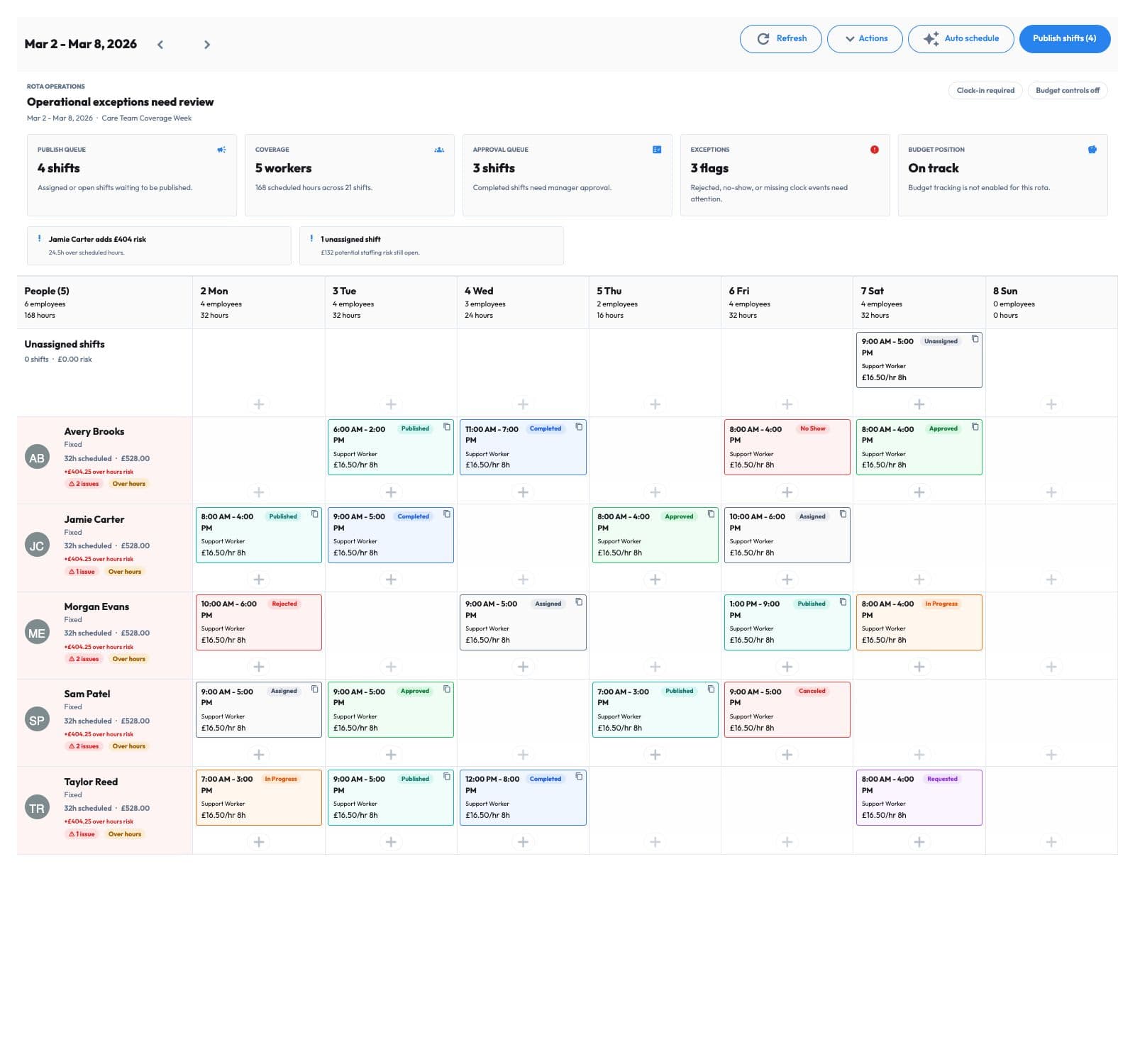
Assign employees, review the final rota and publish the shifts that are ready to communicate.
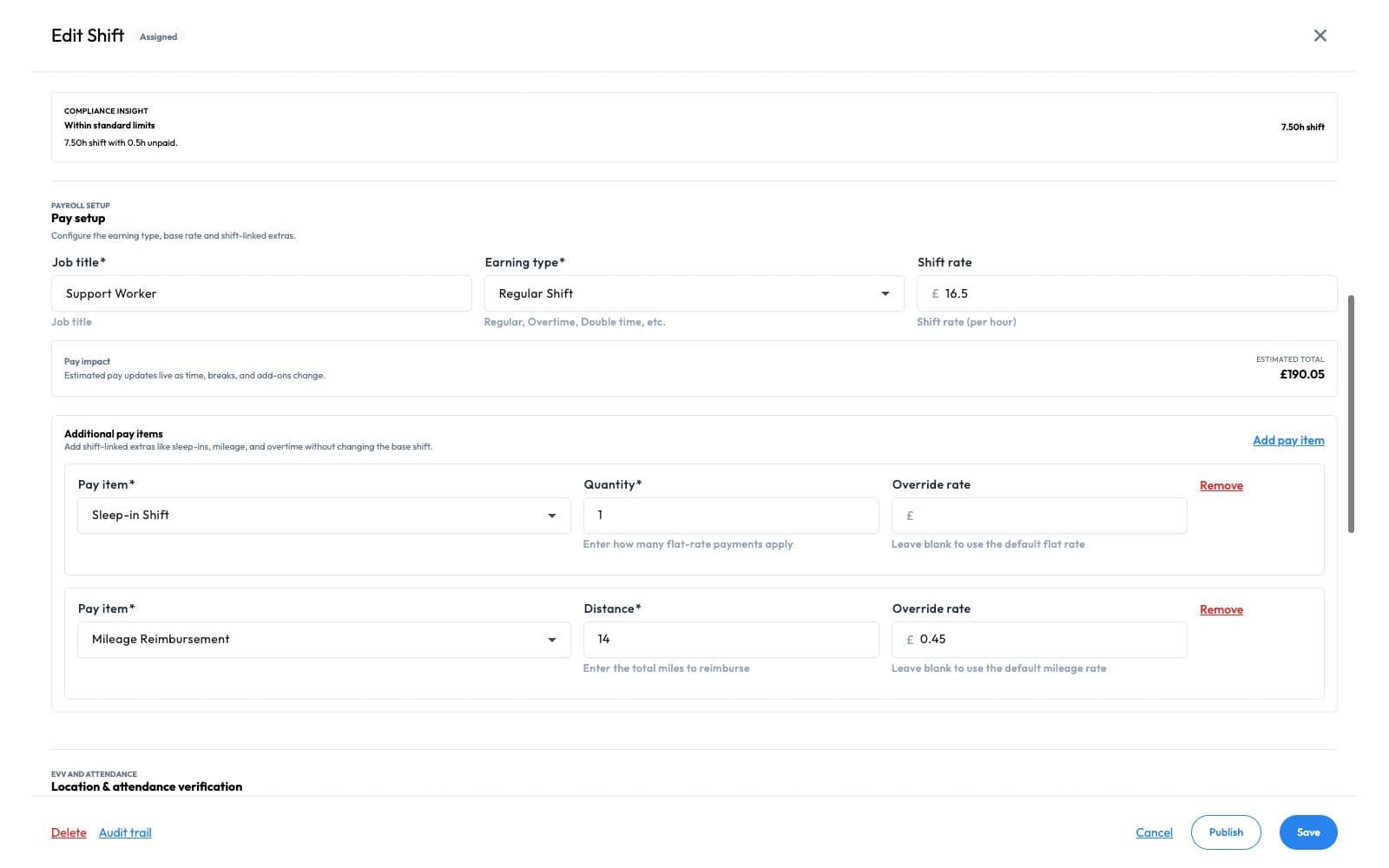
Handle later reassignments and swaps while keeping the published rota and its change history clear.
Rota structure
Keep the team, manager, department, project, location or client context attached to the rota instead of rebuilding it around a blank calendar.
Set its date range, members, operating context and relevant controls before scheduling work.
Duplicate shifts or load a rota template, then review the resulting plan before publication.
Connect the planned shift to the place, project or client it serves where relevant.

Plan together
A clearer plan for every shiftPeople · Availability · Coverage
Coverage review
Review availability, leave and overlapping assignments before deciding who should cover the work. Qualification evidence supports the decision but does not certify suitability.
Use recorded availability and leave context to narrow the people who can be considered.
Identify conflicting assignments and shifts that still need an employee.
Configure rota-level clocking requirements when the optional Time Tracking workflow is enabled.

Coverage review
Find the right coverAvailability · Leave · Open shifts
Budget control
Configure daily rota controls and surface warnings when planned employee counts, hours or labour cost move beyond them.
Record planned employee counts, scheduled hours and labour budget for the days that need controls.
See when the current rota exceeds an enabled daily control before publishing it.
Compare the planned rota with its configured budget without claiming future cost is guaranteed.
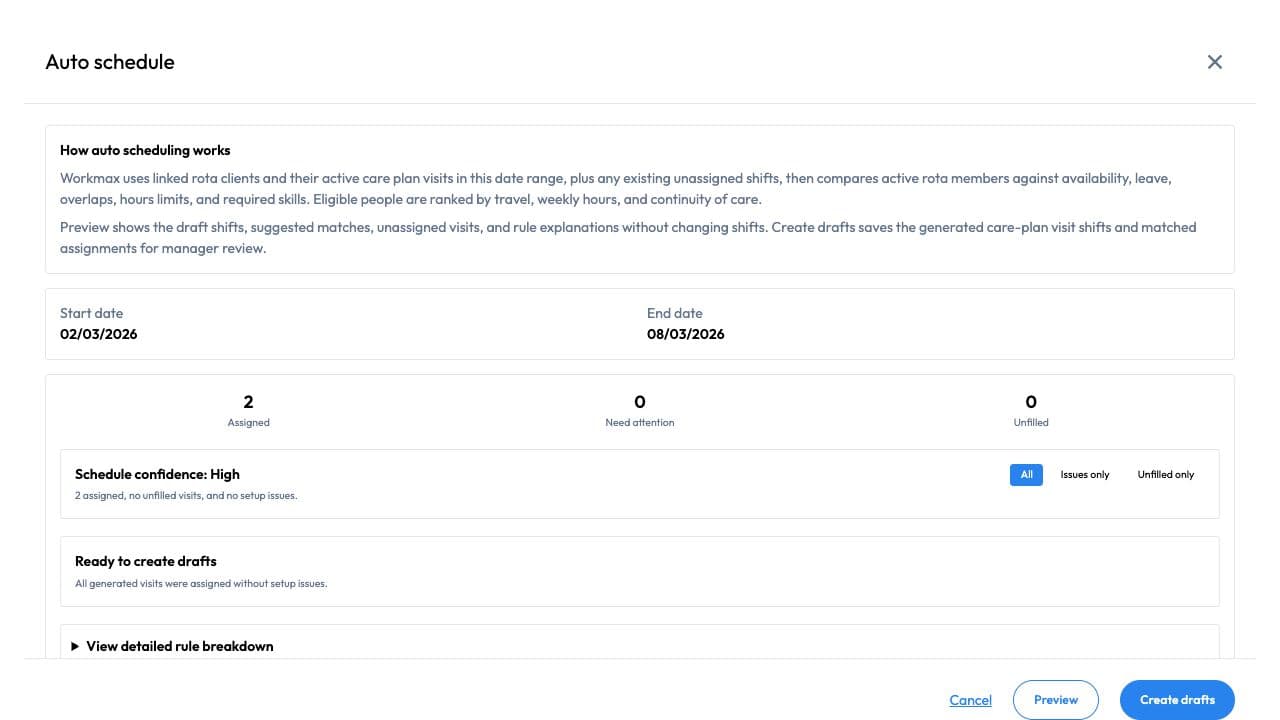
Generate a proposed assignment plan, review its warnings and make changes before publishing.

Budget planning
Check the cost before publishingStaffing · Scheduled hours · Budget warnings
Publish and maintain
Publish ready shifts, let employees view their current schedule and preserve the story when work is reassigned, swapped or reordered.
Review and publish individual shifts or a selected group when the rota is ready to communicate.
Give employees access to their upcoming work on supported mobile and web experiences.
Keep the state of reassignments, swap requests and material shift changes available for review.
Keep scheduled visit locations, route order and available travel context within the employee plan.

Keep your team informed
One place to check upcoming workPublished shifts · Changes · Schedule access
Plan and publish rotas with Scheduling. Add Time Tracking to record worked hours and manage leave, and Payroll to calculate pay and make submissions. Each is an optional, separately priced subscription. Rota-level clocking requirements are available when Time Tracking is enabled.
A person whose Workmax account remains active and has the relevant module enabled during the billing month. Additions are prorated from activation; deactivated users stop billing from the next billing period.
10 active employees
£10/month + VAT
10 × £1 per active user
25 active employees
£25/month + VAT
25 × £1 per active user
30-day standard trial · No setup fee · Monthly billing · Month-to-month with 30 days' notice
Other modules are priced separately. Review dependencies in your estimate.
From plan to published rota
Create shifts and reuse templates around the people and locations you manage. Assignments stay connected to the employee record.
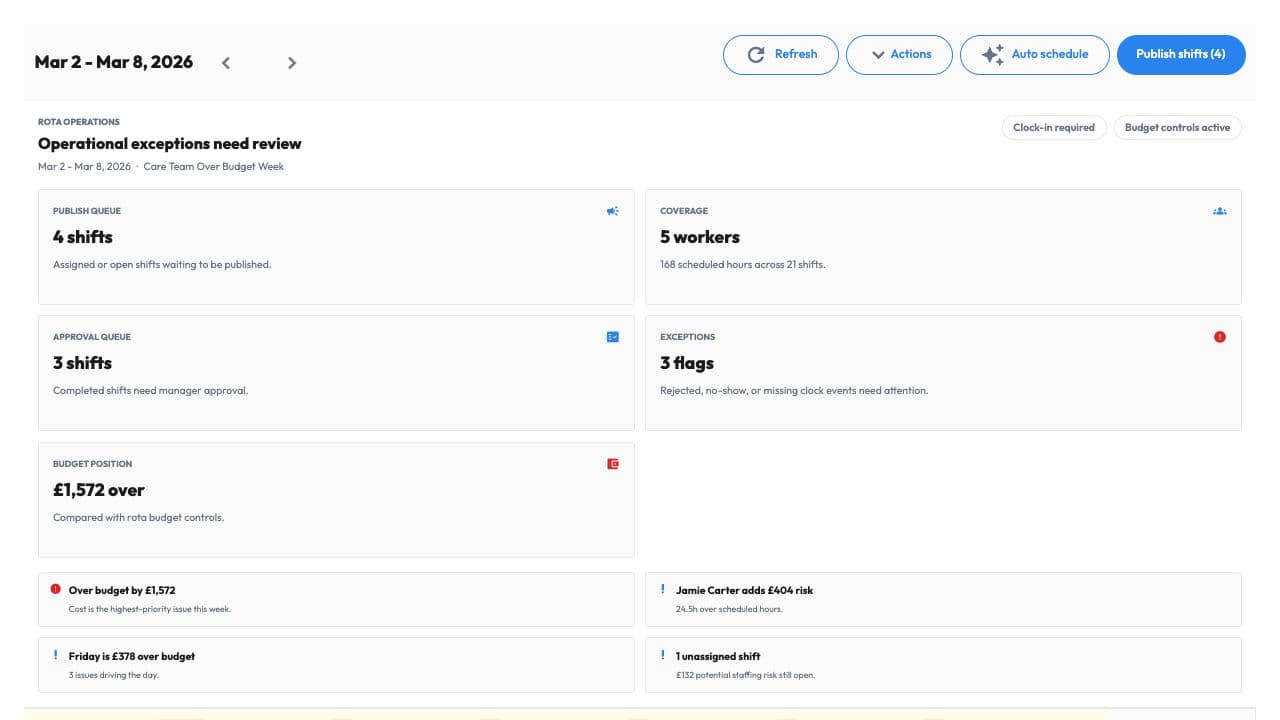
Review availability, approved-leave context and coverage before publishing. Check configured staffing, hours and labour-budget warnings.
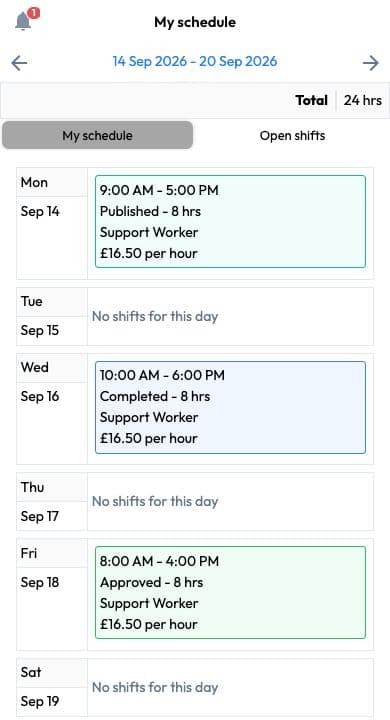
Give employees access to their schedule on mobile. Keep later changes and shift-swap decisions available for review.
Scheduling for care providers
Rotas can include client, location and multi-location shift context, with ordered locations and travel context when a care shift includes multiple visits. Add the separately priced Care & EVV module for care-plan tasks, visit evidence and delivery confirmation.
Explore scheduling for care teams ↗Questions answered
Practical answers about Workmax rotas, coverage, connected modules and setup.
In your demo, we’ll show how Workmax structures a rota, reviews availability and budget context, resolves an uncovered shift and publishes the resulting schedule.
Request a demo ↗